WordPress updates are essential to keeping a website secure, yet they are also one of the biggest sources of anxiety for web agencies. We asked Sébastien Cavaillé, Product Marketing Manager at OVHcloud, to explain how Smart Automatic Updates was designed to solve this dilemma.
Every agency that manages WordPress sites knows about the tension between needing updates and not having the time or resources to perform them. On one hand, updates can’t wait: according to the latest annual report from WordPress security specialist Patchstack, 11,334 new vulnerabilities were recorded in 2025, 91% of them in plugins, 9% in themes, and only six in WordPress core. And attackers move fast: around half of high-impact vulnerabilities are exploited within 24 hours of disclosure. An outdated plugin is one of the most common entry points for an attacker, and the longer an update waits, the longer a site stays exposed.
But on the other hand, every update carries a risk: an incompatible plugin, a theme that no longer displays properly, a page that suddenly returns an error. To avoid taking that risk blindly, many agencies check each site by hand. That takes a considerable amount of time when you manage dozens or even hundreds of sites. And when time runs short, updates get postponed, sometimes for weeks or months.
To break this deadlock, OVHcloud’s teams developed Smart Automatic Updates, a feature included in Managed Hosting for WordPress. To better understand this issue, we spoke with Sébastien, who worked on the project.
Where did the project idea come from?
It came straight from our customers. Across our shared hosting platform, we host around 6 million websites, and 80% of them run on WordPress. That gives us a lot of feedback, and one need kept coming up: people know they have to keep their sites up to date, but many have lived through an update that went wrong, and they don’t have the time to check every site by hand.
Traditional automatic updates solve the security problem, but they create another one, because you often find out a site is broken when a client calls. We wanted automation that checks before it acts.
One story in particular stuck with us. A freelance web developer was running a one-person agency and managing dozens of WordPress sites for his clients on his own. A vulnerability was disclosed in a plugin used across many of those sites, and he simply didn’t have time to update them all before an attacker got there first. Within a short time, 36 of his clients’ sites had been hacked and were redirecting visitors to malicious websites.
Cleaning up the sites was one thing. The hardest part was facing his clients. Each of them had trusted him to look after their website, and each of them learned that their visitors had been sent to dangerous pages. For a freelancer whose business relies on reputation and word of mouth, that kind of damage to his credibility takes far longer to repair than the sites themselves.
Since then, he has moved his clients’ sites to Managed Hosting for WordPress and handed us the job of keeping them up to date. His story is exactly the kind of situation we wanted to prevent: not because he did anything wrong, but because no one can manually keep dozens of sites up to date, week after week.
How are WordPress updates tested?
The principle is to never test an update directly on the live site.
What are the four test stages?
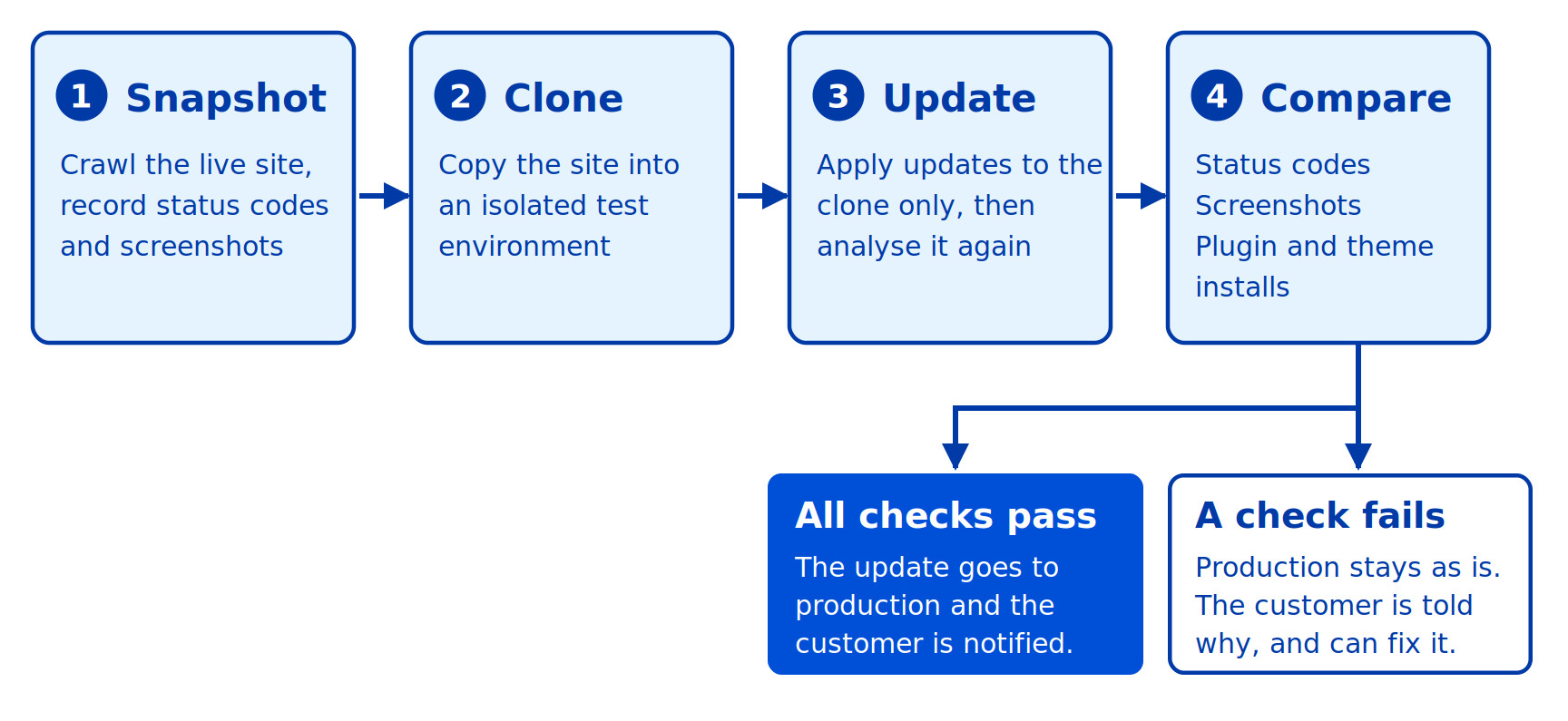
Every day, we check whether new updates are available. Each update is then tested in four stages.
First, we take a snapshot of the site as it works today. A crawler starts from the homepage and follows the links recursively: if the homepage links to page A, which links to page B, which links to page C, then page C is analysed too. We analyse up to 50 pages per site. For each page, we record the HTTP status code returned by the server, which shows whether the page loads normally or returns an error, along with a full-page screenshot at 1920×1080 resolution.
Next, we clone the site into an isolated test environment. That clone, and only that clone, is where we apply the updates to WordPress, the themes, and the plugins.
Third, we analyse the clone exactly the same way as the original site, with the same pages, the same HTTP status codes, and the same screenshots.
Finally, we compare the two. That comparison decides whether the update can be applied to production.
What makes an update valid?
Three conditions must be met:
- The HTTP status codes are identical. If a page that used to work now returns an error, the update is blocked.
- The screenshots match, with a small tolerance for visual differences.
- Every theme and plugin update has installed without errors.
The visual comparison is very strict, by design. A pixel is considered different as soon as any of its red, green, or blue values changes by even a single unit. There’s no colour tolerance at all. What we do tolerate is a small proportion of changed pixels: up to 5% of the page. So the threshold measures how much of the page has changed, not how much each pixel has changed.
Before taking each screenshot, we also wait a few seconds, to let loading animations and similar effects finish.
How do you avoid false alarms?
Many sites have carousels, animations, or content that changes constantly. That was one of the most interesting problems we had to solve. In the very first tests, we were surprised by how many updates were being flagged as failures, even though nothing looked broken when we checked the sites by hand. When we dug into the screenshots, the culprits were almost always the same: homepage sliders that had moved on to the next image, countdown timers on event sites, “latest posts” widgets, or embedded social media feeds that had refreshed between two captures. The updates were fine; the pages were simply alive.
The solution was to take several screenshots of each page a few seconds apart. If the page changes on its own between two screenshots, the system flags it as dynamic and excludes it from the visual comparison. These pages aren’t left unchecked, though: their HTTP status codes are still compared, so a dynamic page that starts returning an error will still block the update. Once we added that step, the false alarms dropped dramatically, and we could trust the visual comparison again.
How far does the analysis go?
We focused on what matters most: the pages your visitors actually see. In practice, that covers the core of most websites: the homepage, the main sections, and the key pages visitors navigate through.
Pages that can’t be reached from the homepage, even indirectly, aren’t part of the analysis. That’s intentional: if no link leads to a page, visitors can’t reach it by browsing the site either, so it isn’t where a broken update would affect them.
The same logic applies to areas behind a login, such as customer accounts or the admin dashboard. Every site handles authentication in its own way, so we chose to concentrate on the public-facing pages, where we can run reliable, consistent checks at scale.
The idea isn’t to replace an agency’s expertise, but to take over the repetitive checks it would otherwise do by hand, site after site. That frees up time for the work only they can do.
When a test passes or fails
What happens when validation fails?
Nothing happens on the live site, and that’s the whole point. If any criterion isn’t met, the updates are not applied. The site keeps running exactly as before.
The customer then receives an email explaining why the validation failed. There are four possible causes:
- Plugins or themes couldn’t be fully updated on the test site.
- The homepage returned a 4xx error or was unreachable, so the test couldn’t be performed.
- The HTTP responses differ between the original site and the clone.
- The screenshots differ between the two.
The email also gives access to the cloned site, where the updates have been applied. The agency can see the problem, fix it directly on the clone, and then trigger the production update themselves once everything is in order.
We were firm on this point: automation takes care of the repetitive work, but it never makes a risky decision on the agency’s behalf. When in doubt, a human stays in control.
How does a validated update go live?
Once the update has been validated, it’s applied to production shortly afterwards, and the customer is notified.
There’s no automatic rollback as such, since the update has already been tested before going live. But if a problem does appear afterwards, the customer can restore a backup in a single click from the OVHcloud Control Panel. Backups are made site by site rather than for the whole hosting plan, so an agency can restore one client’s site without touching any of the others.
Can you exclude plugins from updates?
No, and it’s a deliberate choice. When someone wants to exclude a plugin, it’s usually because they’re afraid an update will break the site. Making sure it doesn’t break is precisely our job.
Some cases require special handling, and we take care of them. Take WooCommerce: if a site uses both WooCommerce and a premium WooCommerce extension whose licence has expired, the premium extension no longer receives updates. Updating WooCommerce alone would then risk breaking the site, because a recent version of WooCommerce isn’t compatible with an outdated version of the extension. In that situation, we don’t update WooCommerce. Whenever Smart Automatic Updates reveals other cases like this, we handle them too.
What about premium plugins and themes?
The rule is simple: if you can click “Update” for a plugin or theme in your WordPress admin dashboard, we update it. If you can’t, for example because a licence has expired, we don’t. In that case, we let the customer know in their OVHcloud Control Panel that the plugin needs to be updated, so the update isn’t overlooked.
What changes for agencies?
I’d say three things.
First, security. Updates no longer pile up because nobody has had time to check them. Every site is kept up to date on a regular basis, which shortens the window during which a known vulnerability remains open.
Second, peace of mind. The agency no longer has to wonder whether an update broke a site. Either the update was validated and applied, or production stayed untouched and they’ve been told exactly why. And if anything ever goes wrong, each client’s site can be restored individually in a single click, without affecting the others.
Third, time savings. One agency told us that maintaining its sites takes up to 30% of its time. Smart Automatic Updates takes over the repetitive checks, so agencies can spend more of that time on what brings the most value to their clients.
Smart Automatic Updates is included in all our Managed Hosting for WordPress plans, so every WordPress update is tested before it reaches your clients’ sites. Learn more about how we support agencies and freelancers in managing their WordPress sites, or read why we built managed WordPress hosting this way.
The Managed Hosting for WordPress documentation covers the setup and the update process in more detail.