
In a previous blog post, I explained how to use OVHcloud S3-compatible Object Storage as a Terraform backend for storing Terraform/OpenTofu state files.
Since then, we've enhanced OVHcloud Object Storage, and one of the coolest improvements is the support for conditional writes. By preventing concurrent overwrites, this feature enables Terraform's native S3 state-locking mechanism to work seamlessly with OVHcloud Object Storage.
In practice, Terraform/OpenTofu can create a .tflock object only if it does not already exist. If another operation has already created the lock file, the conditional write fails and the second operation is blocked.
With this blog post, I explain how we can configure our Terraform/OpenTofu backend to store our states in an OVHcloud S3-compatible Object Storage with S3 state locking.
Terraform/OpenTofu S3 State Locking feature
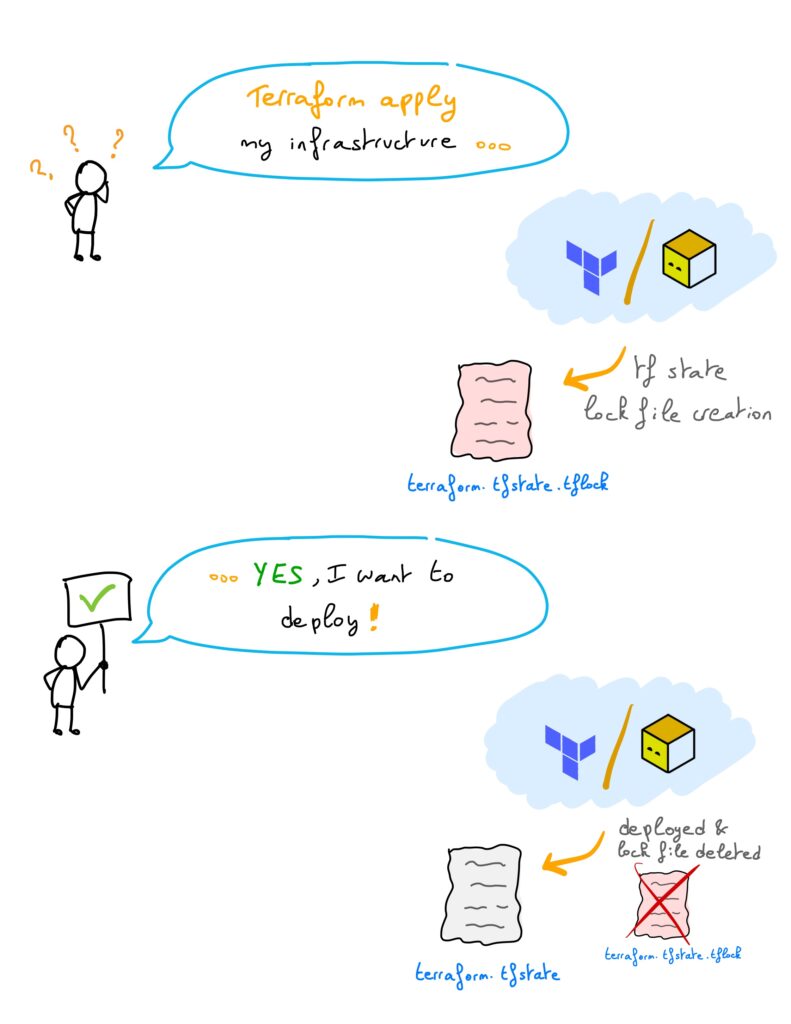
State locking is a critical feature for collaborative Terraform/OpenTofu workflows. It ensures that only one operation can modify a state file at any given time, preventing concurrent writes that could lead to inconsistencies or state corruption.
Concretely, when a user runs terraform apply (or tofu apply), Terraform creates a .tflock file in the S3 bucket. This lock file indicates that an operation is currently in progress and that the state file is being used. If another user attempts to run terraform apply (or tofu apply) while the lock is active, Terraform detects the existing lock and aborts the operation with an error message. This prevents concurrent modifications of the state file and helps avoid state corruption.
Prerequisites
To be able to store your Terraform/OpenTofu states and activate the use_lockfile feature, you need to follow some prerequisites:
- Have an OVHcloud account
- Created a S3-compatible Object Storage (enable bucket versioning for your state bucket so previous state versions can be recovered if needed)
- Installed the Terraform CLI or OpenTofu CLI (version 1.10 or >)
- Installed the OVHcloud CLI
Save the s3 user credentials in environment variables (that allows you to access and store files in the bucket):
export AWS_ACCESS_KEY_ID="xxxxxxxxx"
export AWS_SECRET_ACCESS_KEY="yyyyyyyyy"
Configure it
Create a new folder, named my-app (for example), and go into it.
Create a provider.tf file with the following content, and replace the bucket value witht he name of the bucket you created:
terraform {
    backend "s3" {
      bucket = "terraform-state-3az" # the name of YOUR bucket
      key    = "my-app.tfstate" # the name of the state of your app
      region = "eu-west-par" # the region of the bucket
      endpoints = {
        s3 = "https://s3.eu-west-par.io.cloud.ovh.net/" # the endpoint
      }
      skip_credentials_validation = true
      skip_region_validation      = true
      skip_requesting_account_id  = true
      skip_s3_checksum            = true

      use_lockfile = true  # activation of the S3 native state locking feature
    }
}
💡The use_lockfile = true argument enables native S3 state locking. Terraform/OpenTofu uses the .tflock object to prevent two operations from writing to the same state file at the same time.
Test it!
Create a resource.tf file with an example resource to create (only for the testing purpose):
resource "null_resource" "test" {}Initialise Terraform:
$ terraform init

Initializing the backend...

Successfully configured the backend "s3"! Terraform will automatically
use this backend unless the backend configuration changes.
Initializing provider plugins...
- Finding latest version of hashicorp/null...
- Installing hashicorp/null v3.3.0...
- Installed hashicorp/null v3.3.0 (signed by HashiCorp)
Terraform has created a lock file .terraform.lock.hcl to record the provider
selections it made above. Include this file in your version control repository
so that Terraform can guarantee to make the same selections by default when
you run "terraform init" in the future.

Terraform has been successfully initialized!

You may now begin working with Terraform. Try running "terraform plan" to see
any changes that are required for your infrastructure. All Terraform commands
should now work.

If you ever set or change modules or backend configuration for Terraform,
rerun this command to reinitialize your working directory. If you forget, other
commands will detect it and remind you to do so if necessary.
As you can see, Terraform is using “s3” backend and initialized the provider plugins. 💪
💡Note that .terraform.lock.hcl is the provider dependency lock file created during initialization. The state lock file used for S3 backend locking is the .tflock file shown in the bucket during terraform apply.
Execute the apply command (without answering "yes"):
$ terraform apply

Terraform used the selected providers to generate the following execution plan. Resource actions are indicated with the following symbols:
  + create

Terraform will perform the following actions:

  # null_resource.test will be created
  + resource "null_resource" "test" {
      + id = (known after apply)
    }

Plan: 1 to add, 0 to change, 0 to destroy.

Do you want to perform these actions?
  Terraform will perform the actions described above.
  Only 'yes' will be accepted to approve.

  Enter a value:
Check if a new file appears in the S3 bucket:
$ ovhcloud cloud storage object object list terraform-state-3az

┌───────────────────────┬──────┐
│          key          │ size │
├───────────────────────┼──────┤
│ my-app.tfstate.tflock │ 219  │
└───────────────────────┴──────┘
💡 Use option -o json or -o yaml to get the raw output with all information
A .tflock file appears! 💪
You can also check it in the OVHcloud Control Panel:
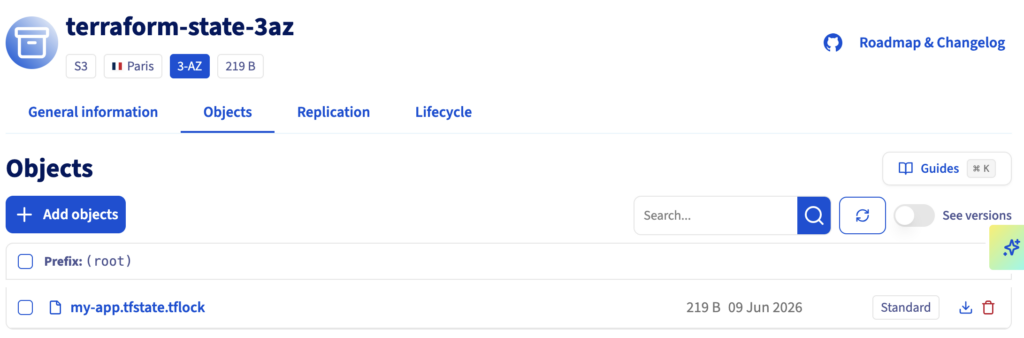
This .tflock file means that someone is working on this infrastructure. After answering "yes" to the terraform apply command, the resources will be deployed, the state will appear and the lock file will disappear:
$ terraform apply

Terraform used the selected providers to generate the following execution plan. Resource actions are indicated with the following symbols:
  + create

Terraform will perform the following actions:

  # null_resource.test will be created
  + resource "null_resource" "test" {
      + id = (known after apply)
    }

Plan: 1 to add, 0 to change, 0 to destroy.

Do you want to perform these actions?
  Terraform will perform the actions described above.
  Only 'yes' will be accepted to approve.

  Enter a value: yes

null_resource.test: Creating...
null_resource.test: Creation complete after 0s [id=2048943220587414471]

Apply complete! Resources: 1 added, 0 changed, 0 destroyed.


$ ovhcloud cloud storage object object list terraform-state-3az
┌────────────────┬──────┐
│      key       │ size │
├────────────────┼──────┤
│ my-app.tfstate │ 612  │
└────────────────┴──────┘
💡 Use option -o json or -o yaml to get the raw output with all information
🎉
Why this Terraform state locking feature is useful?
If a user executes terraform apply command (without answering yes) and another user executes the same command, an error message will be displayed:
$ terraform apply

╷
│ Error: Error acquiring the state lock
│
│ Error message: operation error S3: PutObject, https response error StatusCode: 412, RequestID: tx7b439680a0104339a2fc7-xxxxxxxxxxxx, HostID: tx7b439680a0104339a2fc7-xxxxxxxxxxxx, api error
│ PreconditionFailed: At least one of the pre-conditions you specified did not hold
│ Lock Info:
│   ID:        xxxxxxxx-xxxx-xxxx-xxxx-xxxxxxxxxxxx
│   Path:      terraform-state-3az/my-app.tfstate
│   Operation: OperationTypeApply
│   Who:       avache@xxxxxxxxxx
│   Version:   1.14.9
│   Created:   2026-06-09 13:09:05.562244 +0000 UTC
│   Info:
│
│
│ Terraform acquires a state lock to protect the state from being written
│ by multiple users at the same time. Please resolve the issue above and try
│ again. For most commands, you can disable locking with the "-lock=false"
│ flag, but this is not recommended.
╵
This error is expected. It means another Terraform/OpenTofu operation has already acquired the state lock, so the second operation cannot modify the state file at the same time. The user should wait until the first operation is complete and the lock file has been released, then retry. Although Terraform allows locking to be disabled with -lock=false, this is not recommended because it can lead to concurrent state changes and potential state corruption.
Conclusion
In this blog post, we have seen one use case of conditional writes, but the feature goes far beyond that. Support for conditional writes does not only help prevent accidental overwrites; it also enables safer concurrent workflows, such as Terraform/OpenTofu state locking.
Our team is working on the improvement of Object Storage, so stay tuned for more. And please, as alays, share your thoughts with us!